A 2FA (Two-Factor Authentication) is a security feature that adds an extra layer of protection to your account.
On Waltrex, all transactions require Two-Factor Authentication (2FA), so you’ll need to enable 2FA before completing any transaction.
To enable the 2FA, please follow the next steps:
NOTE: Before setting up your 2Fa, make sure to download the GOOGLE AUTHENTICATOR app on your phone.
1. Open home.waltrex.io and "Login"
2. Once inside your Dashboard, click on "Profile" located on the left navigation menu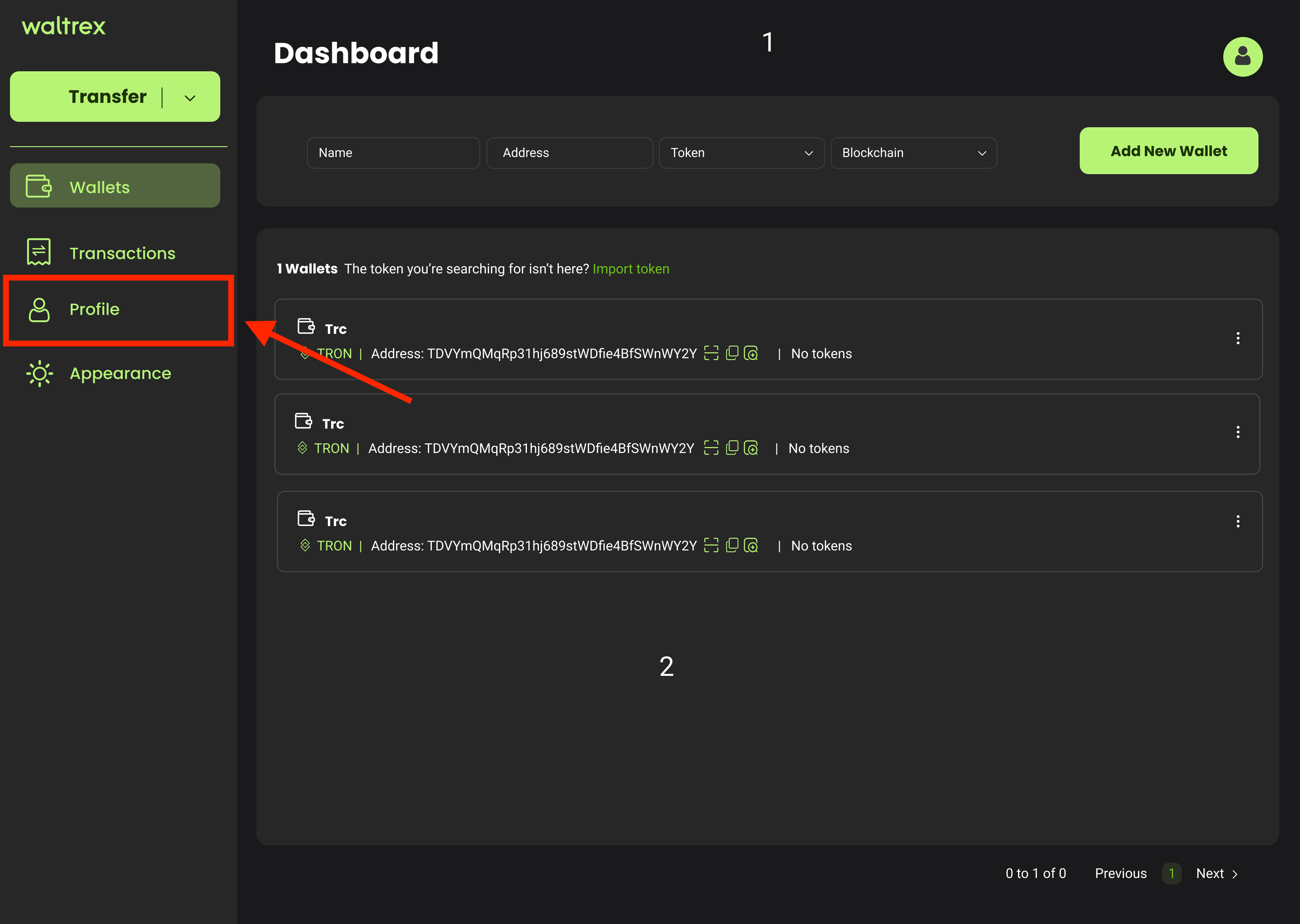
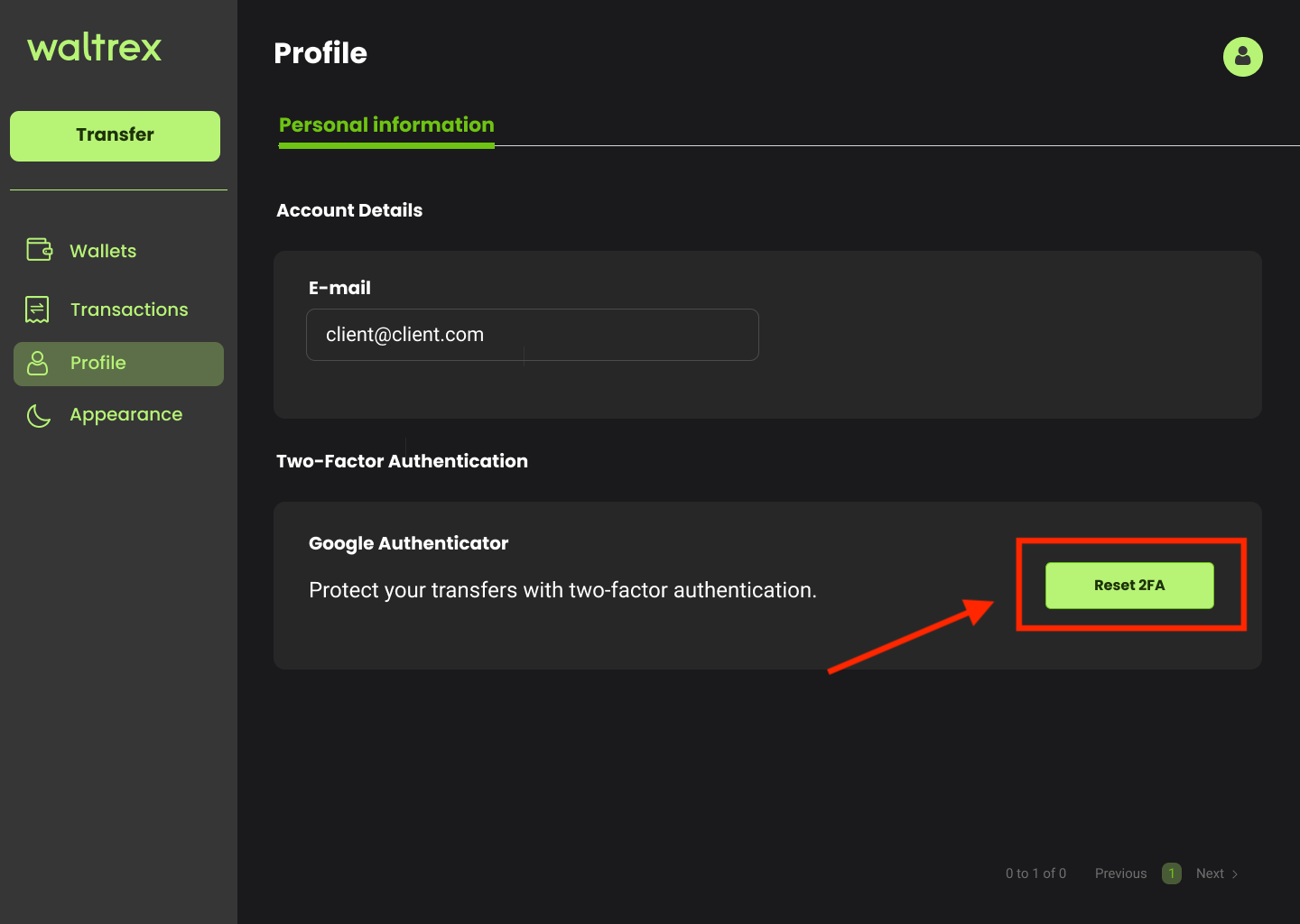
3. Inside your profile, under the Two-Factor authentication section, click on "Reset 2FA"
4. Before scanning any code, make sure to securely save the Manual Key provided
NOTE: The manual key (also called a setup key or secret key) is a code that allows you to set up your 2FA without scanning a QR code. This key is also a backup to recover access to your 2FA.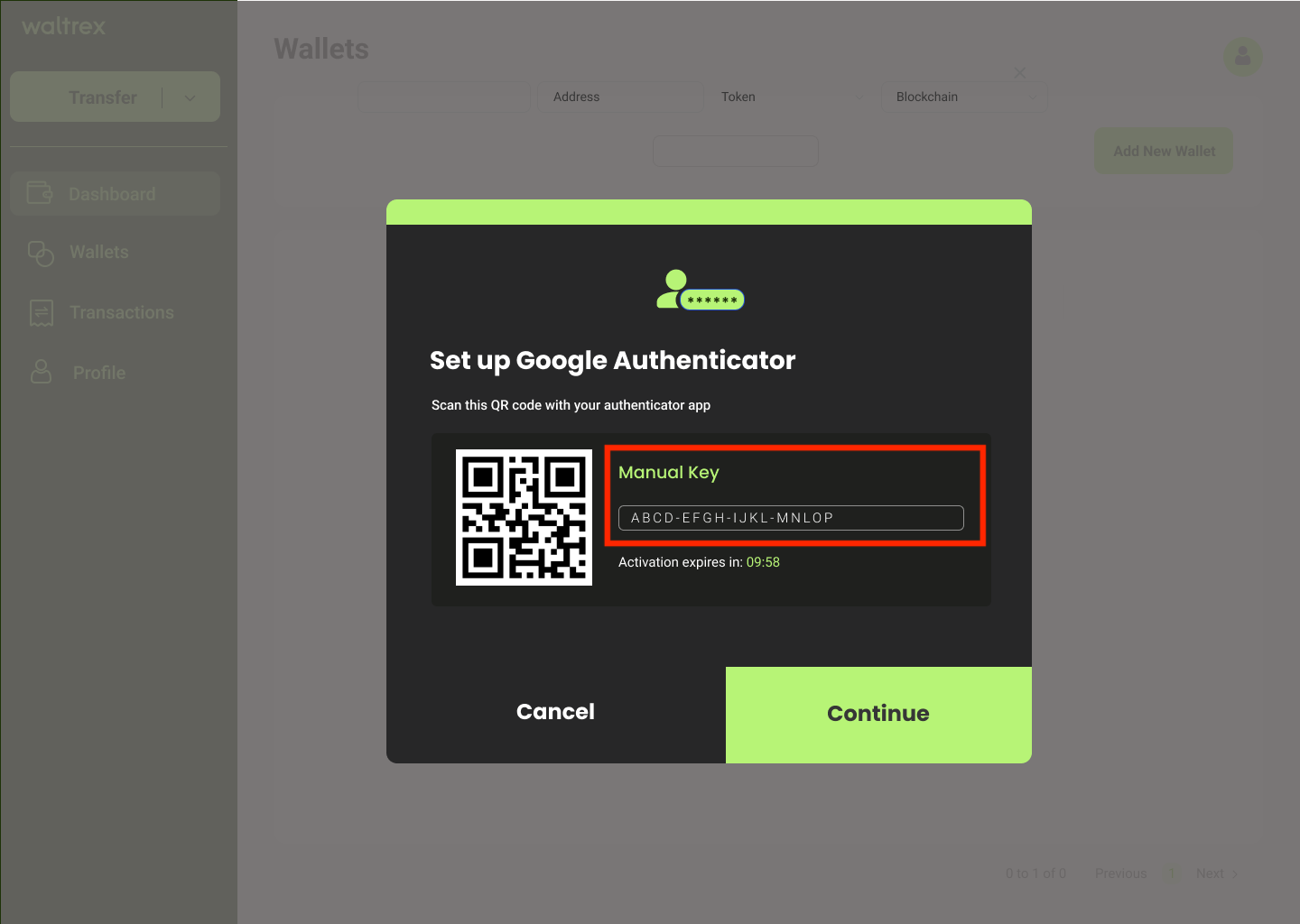
5. Open the Google authenticator app on your phone, and scan the QR Code provided
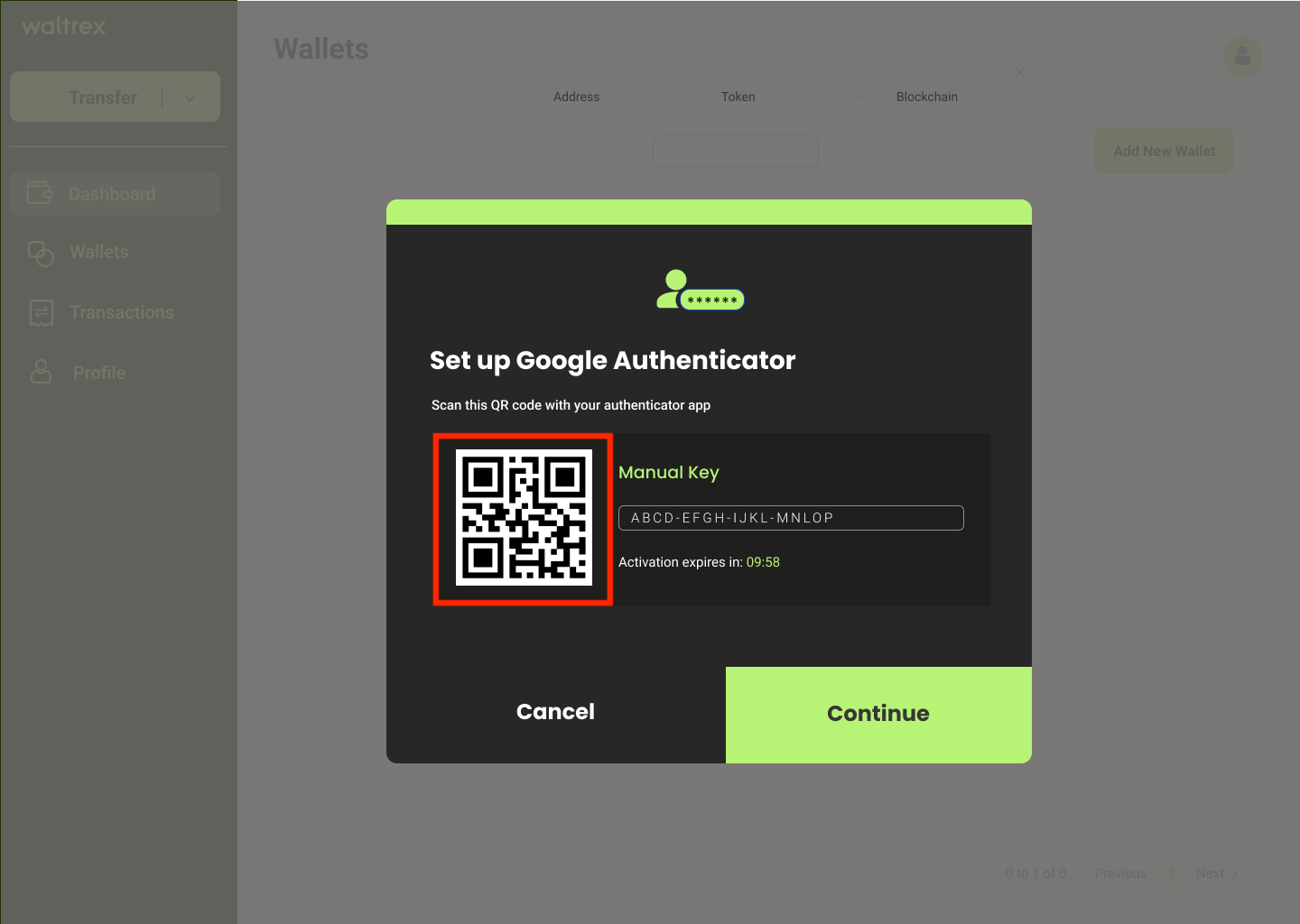
5. Click on "Continue"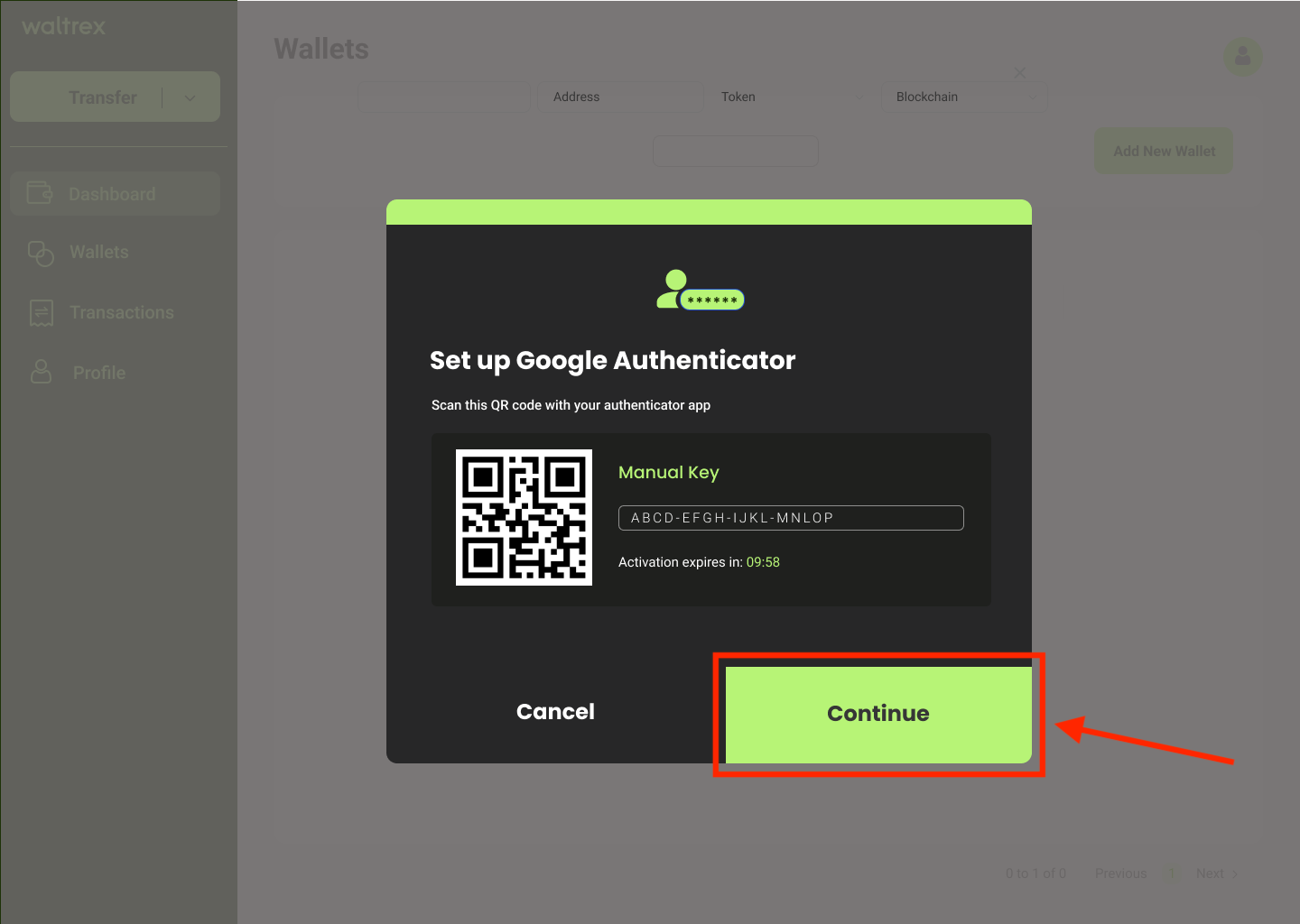
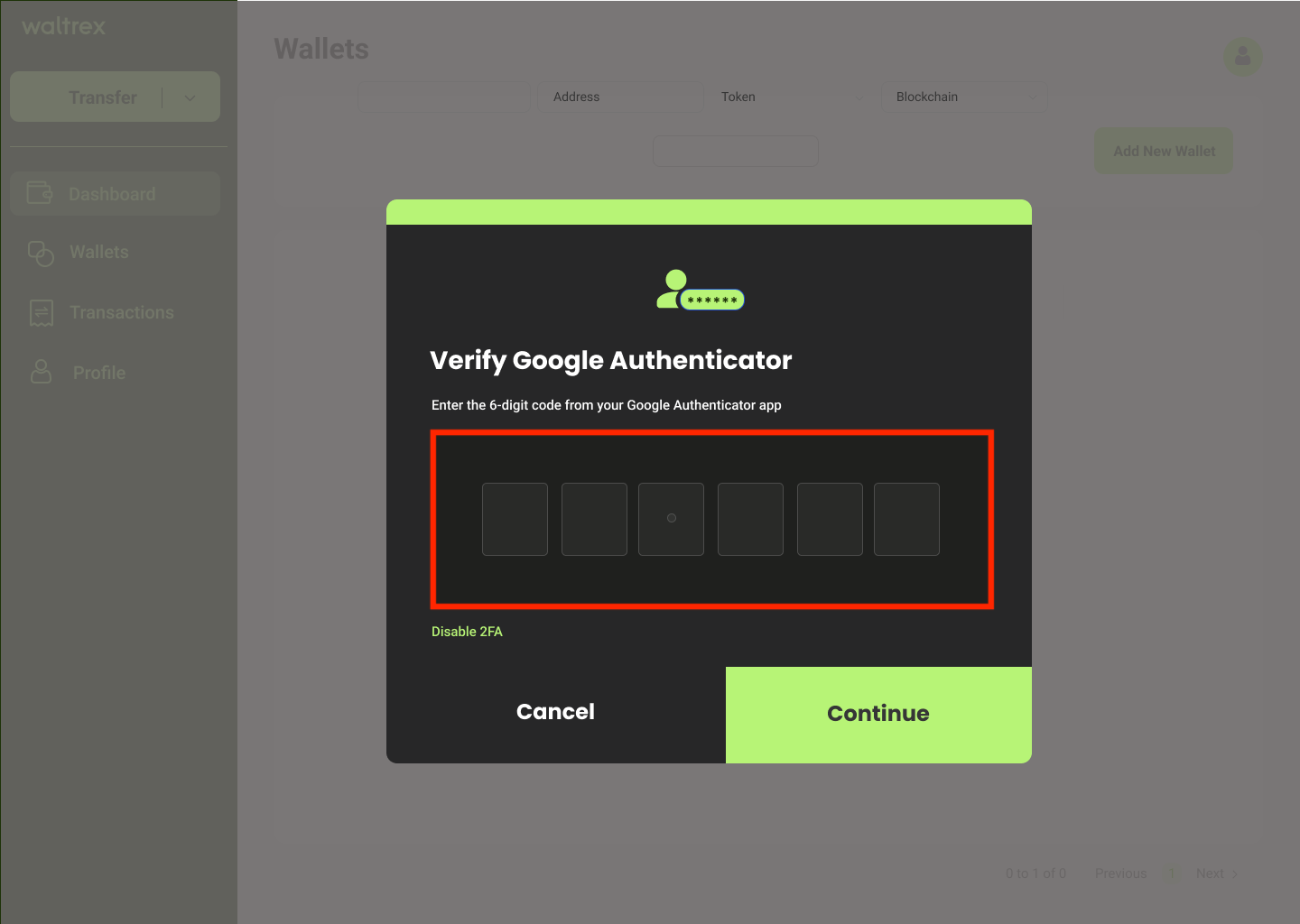
6. Enter the 6-digit code provided by the Google authenticator app. Then click on "Continue"
Congratulations! You have enabled your 2FA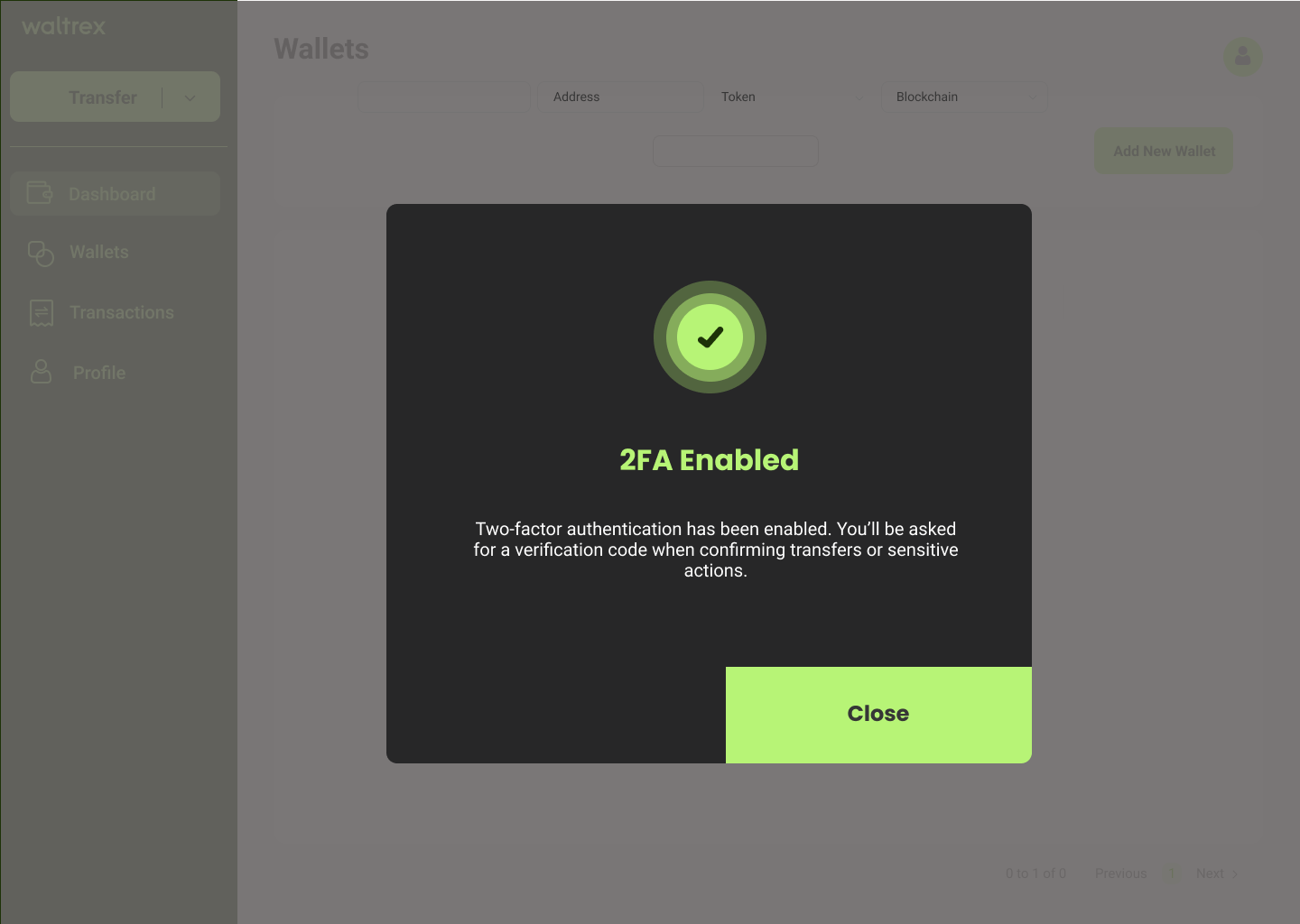
Was this article helpful?
That’s Great!
Thank you for your feedback
Sorry! We couldn't be helpful
Thank you for your feedback
Feedback sent
We appreciate your effort and will try to fix the article